How to Use Lovart AI for Logo Design: Step-by-Step Tutorial for Beginners
Starting a new business or personal brand? Imagine you’re opening a cozy coffee shop and need a fresh, professional logo without hiring a pricey designer. This is where Lovart AI comes in — a simple tool that helps you create stunning logos quickly.
What is Lovart AI?
Lovart AI is an intuitive online logo design tool powered by artificial intelligence. It generates unique, creative logos based on your input, style choices, and preferences. No design experience? No problem. Lovart simplifies logo creation for small business owners, freelancers, and beginners.
Why Lovart AI Matters
Many entrepreneurs struggle with logo design because:
- •They have no design skills.
- •They don’t have time to learn complex software.
- •They want affordable options without compromising quality.
Lovart addresses these pain points by offering a fast, easy, and budget-friendly way to craft professional logos.
Step-by-Step Guide: How to Use Lovart AI for Logo Design
Step 1: Input Your Logo Prompt
Start by describing your business or brand in simple words. For example, if you own a fitness gym, type “modern fitness gym logo minimalist.” Lovart’s AI understands your prompt and begins generating ideas.
Step 2: Choose Your Style
Select from various design styles such as minimalist, vintage, or bold. This helps Lovart tailor your logo to match your brand’s personality.
Step 3: Generate and Download
Click the generate button and watch Lovart create multiple logo options. Preview the designs, pick your favorite, and download it instantly — ready to use for your website, social media, or print.
Real Example: Creating a Coffee Shop Logo
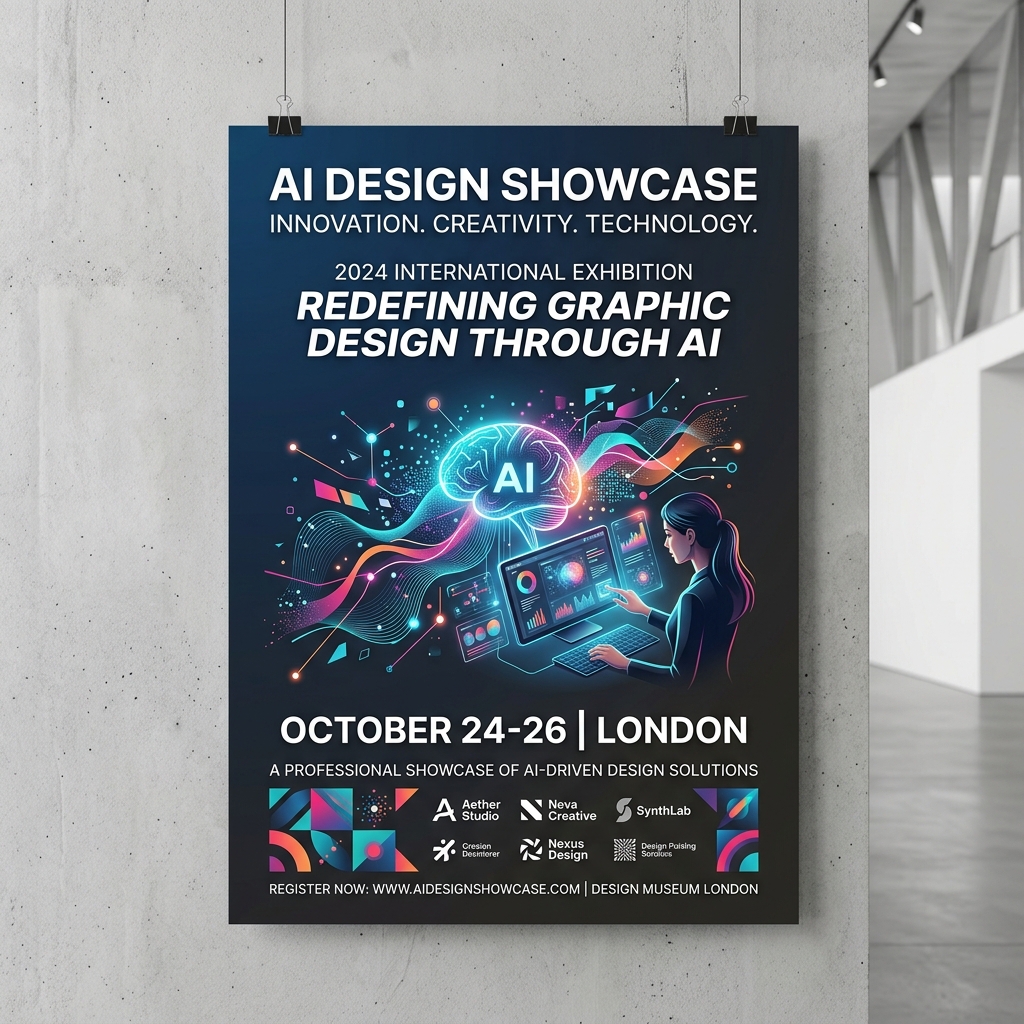
Input: “modern coffee shop logo minimalist”
Output: Lovart generates a sleek logo featuring a simple coffee cup icon with clean lines and an earthy brown palette. The font is modern sans-serif, conveying warmth and approachability — perfect for a trendy café.
This logo can be used on storefront signs, menus, and social media to build a consistent brand image.
Comparison: Lovart AI vs. Canva
While Canva offers a wide range of templates and manual customization, Lovart AI focuses on automated logo generation based on your textual prompt. Lovart requires less time and no graphic design knowledge, making it ideal for beginners who want quick results. Canva is better if you want more control and additional design features.
Tips & Common Mistakes When Using Lovart AI
- •Be specific in your prompt: Clear descriptions lead to better logo suggestions.
- •Experiment with styles: Try different design styles to find what suits your brand.
- •Check scalability: Ensure your logo looks good both on small and large formats.
- •Avoid cluttered prompts: Keep your input concise to get clean designs.
- •Don’t rush the selection: Review multiple generated options before finalizing.
Common mistakes include vague prompts or skipping the style selection step, which can result in generic logos.
Frequently Asked Questions (FAQ)
1. Do I need design skills to use Lovart?
No. Lovart is designed for beginners with no prior design experience.
2. Can I customize the logos generated by Lovart?
Yes, after downloading, you can make minor edits using graphic software if needed.
3. How fast can I get my logo?
You can create and download logos within minutes.
4. Is Lovart free to use?
Lovart offers both free trials and paid plans with additional features. Check the pricing page for details.
5. Can I use the logo for commercial purposes?
Yes, logos generated with Lovart can be used for your business branding and commercial use.
Ready to Create Your Logo?
Start designing your professional logo with no hassle. Save time and avoid expensive designers by using Lovart AI.
Try Lovart Now | View PricingCreate your design in seconds and bring your brand to life today!