Creating YouTube Channel Art with AI Design Software
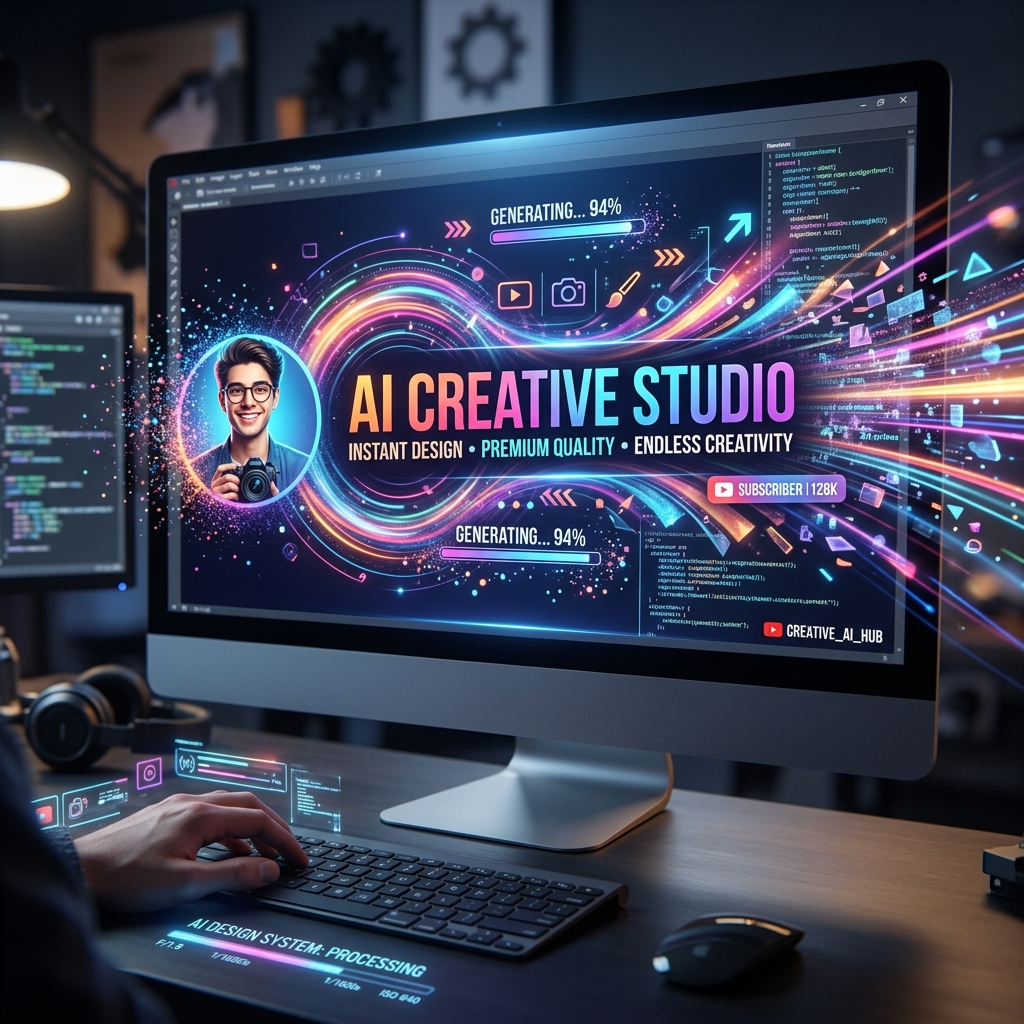
Creating eye-catching YouTube channel art is essential to building your brand and attracting viewers. Imagine you just launched a gaming channel but don’t have design skills or time to create a professional banner. This is where AI YouTube art maker tools come in handy. They allow you to create YouTube channel art AI design with ease, even if you’re a complete beginner.
What is YouTube Channel Art AI Design?
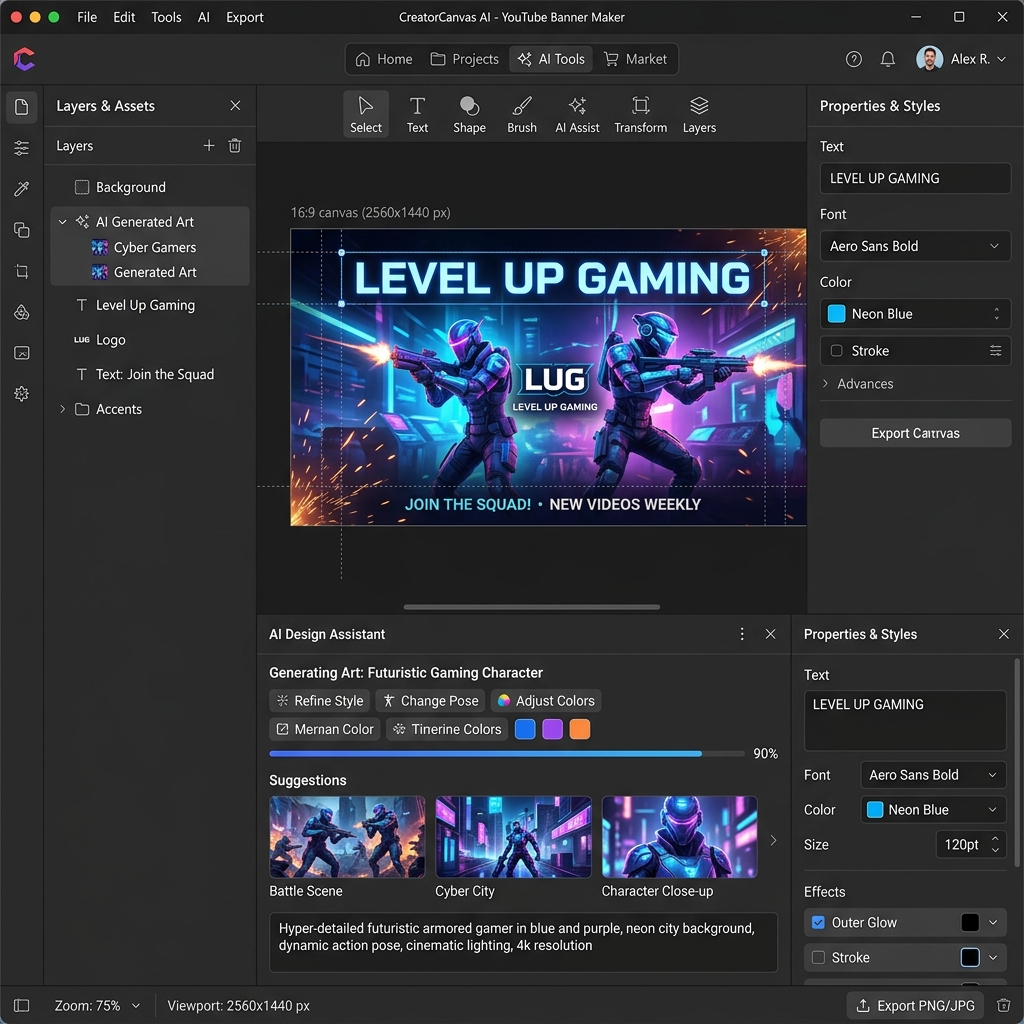
YouTube channel art AI design involves using artificial intelligence-powered software to generate customized banners and graphics for your YouTube channel. These tools analyze your input — like keywords, style preferences, and colors — then automatically create professional designs tailored to your brand.
Unlike traditional graphic design software, AI YouTube art makers require no prior experience. They simplify the process by automating layout, color matching, and typography.
Why YouTube Channel Art AI Design Matters
Creating the perfect banner can be challenging if you lack design skills or time. Here are common pain points solved by AI design software:
- •No design skills: You don’t need to be a graphic designer to get a polished result.
- •Limited time: AI tools produce designs quickly, so you can focus on content creation.
- •Low budget: No need to hire expensive designers or buy costly software.
With AI YouTube art maker tools, anyone can create professional-looking channel art that stands out.
Step-by-Step Guide to Create YouTube Banners with AI
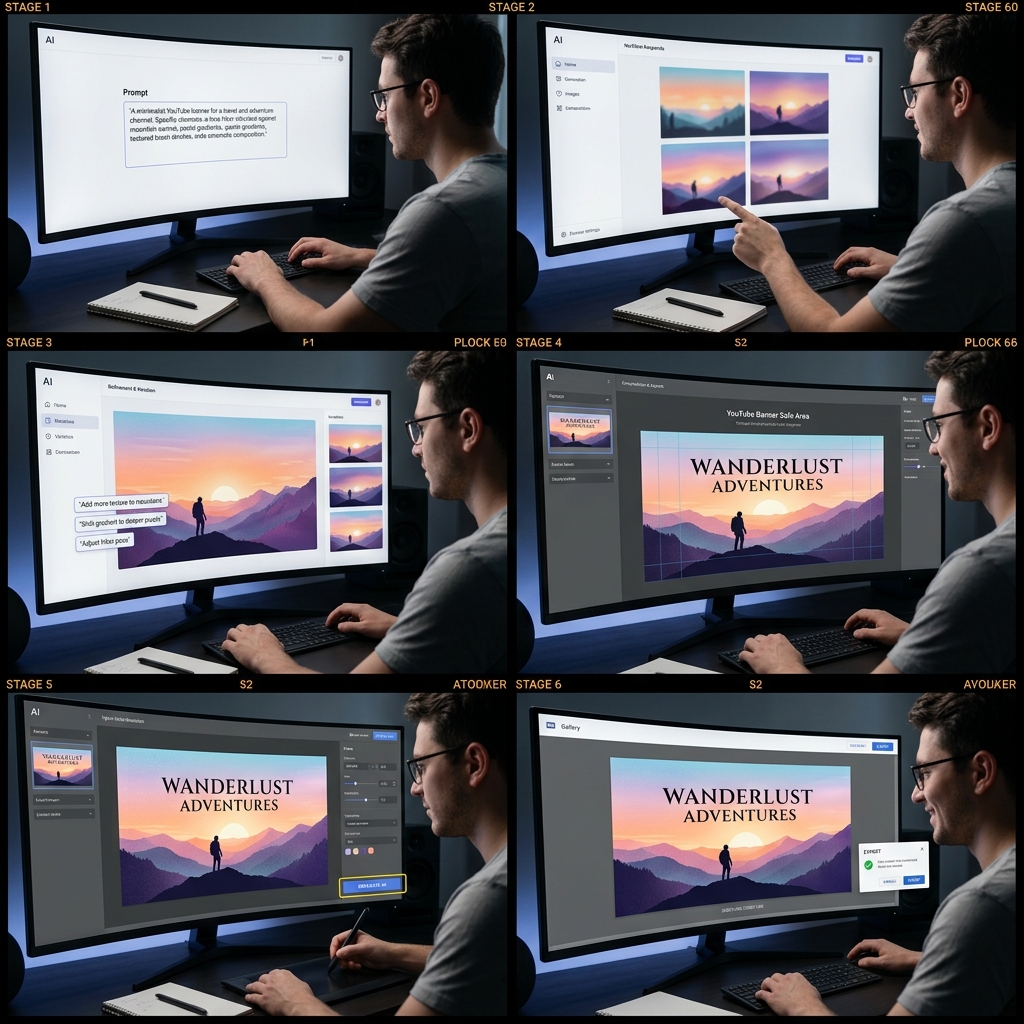
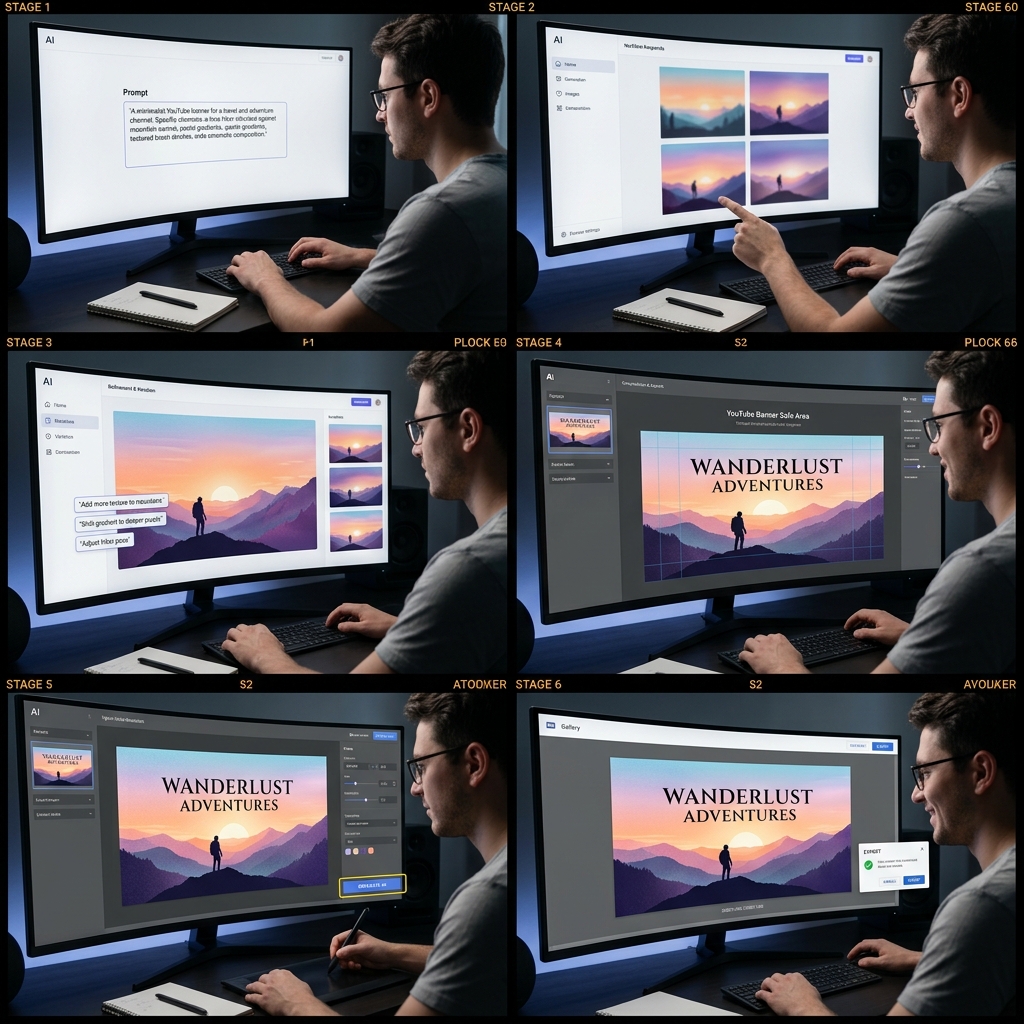
Step 1: Input Your Prompt
Start by entering a description of the style or theme you want. For example, "modern minimalist gaming channel banner with blue and black colors."
Step 2: Choose Your Style
Select from various design styles like minimalist, vibrant, retro, or futuristic. This helps the AI tailor the look to your preferences.
Step 3: Generate and Download
Hit the generate button. The AI will create several design options. Choose your favorite and download the banner in the correct YouTube dimensions.
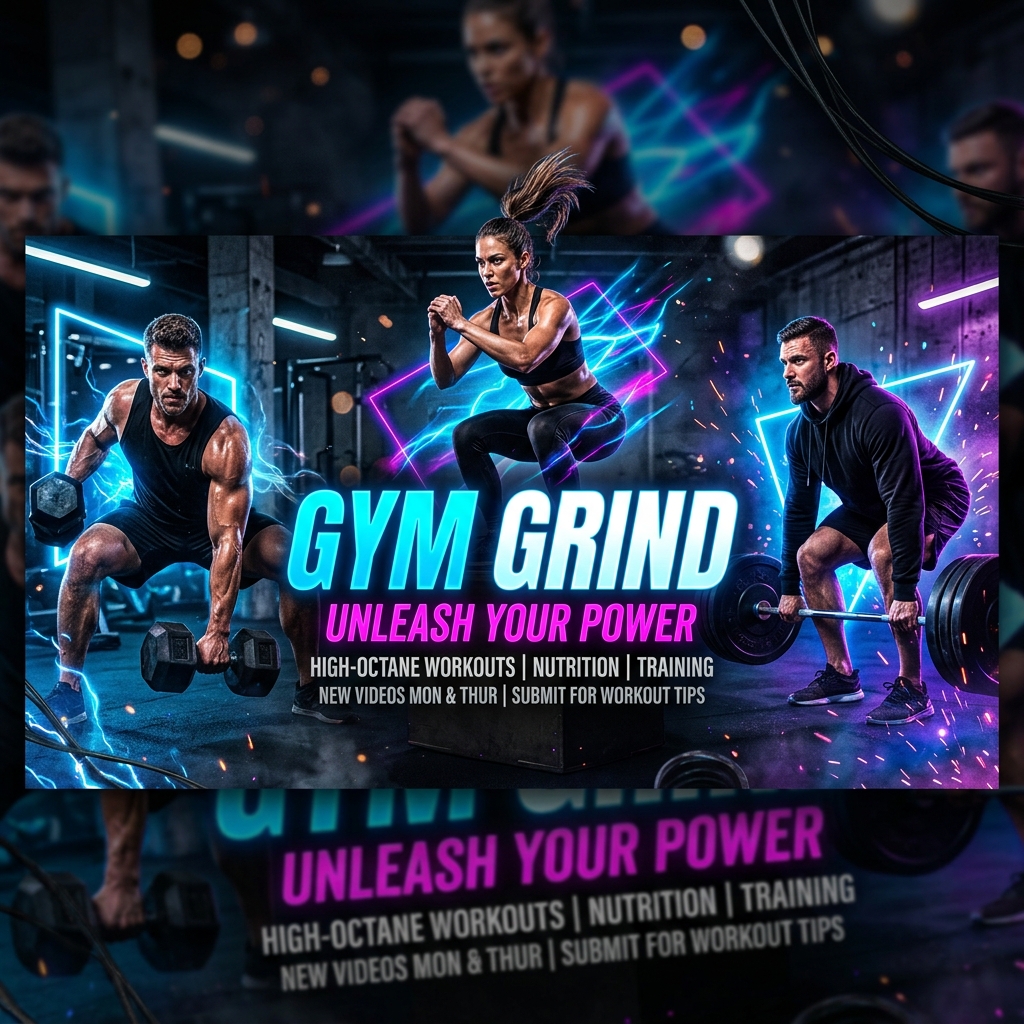
Real Example: Creating a YouTube Channel Banner
Input prompt: "modern fitness channel banner with bold fonts and energetic red tones"
Output: The AI generated a sleek banner featuring a dynamic silhouette of a runner against a red gradient background. The bold, sans-serif font clearly displays the channel name, with subtle abstract shapes adding movement without clutter.
This banner immediately communicates energy and professionalism, perfect for a fitness-focused YouTube channel.
Comparison: AI Design Software vs Canva
While Canva is a popular tool for DIY design, it requires manual adjustments and some design know-how. AI YouTube art makers automate the creative process, saving you time and effort.
- •Speed: AI tools generate banners in seconds, Canva takes longer.
- •Ease: AI requires minimal input, Canva needs more manual work.
- •Customization: Canva offers more manual control; AI tools provide instant styles.
Both have value, but AI design software is ideal for quick, professional YouTube banners without design skills.
["comparison AI design tools interface"]
Tips & Common Mistakes to Avoid
- •Be specific with your prompt: Include colors, themes, and channel focus for better results.
- •Check YouTube dimensions: Ensure the banner fits YouTube’s recommended size (2560 x 1440 px).
- •Avoid clutter: Keep the design simple for mobile and desktop viewing.
- •Use high-contrast fonts: This improves readability.
- •Don’t rely solely on AI: Customize generated designs if possible for uniqueness.
Common mistake: Overloading the banner with too many elements can distract viewers.
Frequently Asked Questions
Q1: Can I use AI YouTube art makers for free?Many tools offer free trials or basic versions, but advanced features may require payment.
Q2: Will AI designs look unique?AI generates variations based on your input, so results are often unique but can be further customized.
Q3: How do I upload channel art to YouTube?Go to your channel, click "Customize channel," then upload the banner under "Branding."
Q4: Can AI create matching thumbnails?Yes, some AI tools also help create thumbnails consistent with your banner style.
Q5: What size should YouTube channel art be?Recommended size is 2560 x 1440 pixels with a safe area of 1546 x 423 pixels for text.
Ready to Create Your YouTube Channel Art?
Save time and design like a pro without any skills. Try Lovart’s AI YouTube art maker to create stunning banners in seconds.
Try Lovart NowCreate your design in seconds and elevate your channel’s look today.
View Pricing